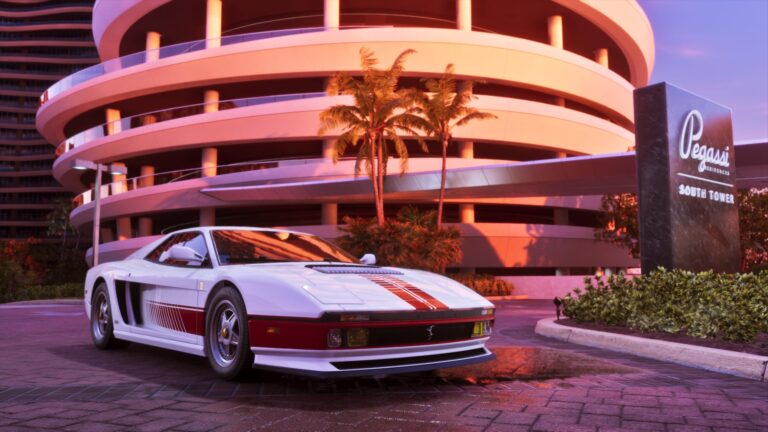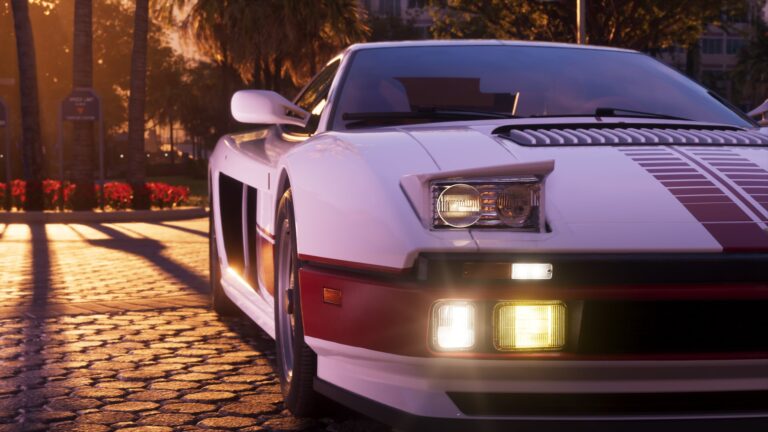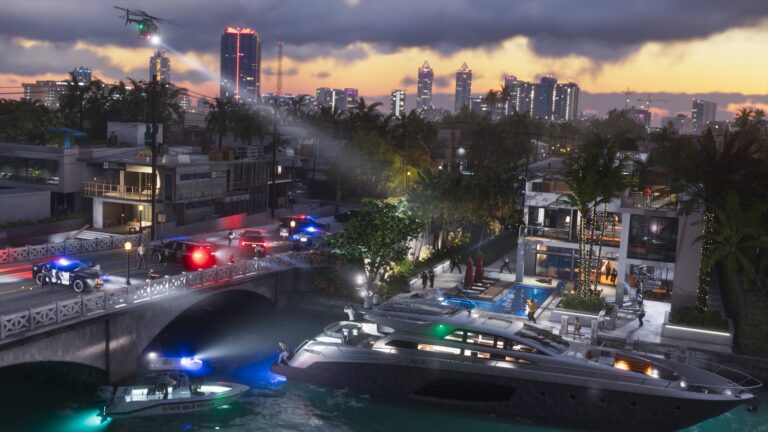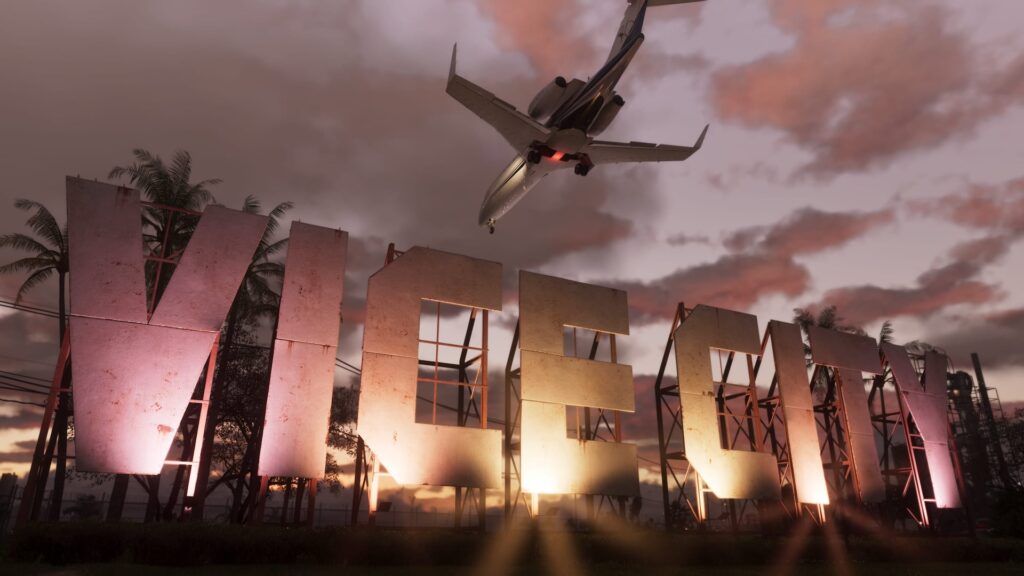
Want to enjoy Leonida without keeping an eye on every car in front of you? Auto Drive lets Jason or Lucia travel to a destination while you watch through the cinematic camera. It is particularly enjoyable on longer drives along the coast, but it is not designed to get you to your next mission as quickly as possible.
Enable Auto Drive
Get into a car and place a marker on the map. Return to the game, hold Down on the D-pad and press Options on PS5 or Menu on Xbox at the same time. This opens the cinematic camera menu. Hold the button shown next to Enable Auto Drive at the bottom of the screen. Once the car begins moving by itself, you can release the accelerator.
Change camera angles during the trip
Use the right stick to adjust the view or click it to change camera angles. The controller triggers let you adjust your speed. Try a slower drive through the city if you want to watch what is happening on the pavements rather than focusing entirely on the next junction.
Choose a suitable route
A trip from a quiet area towards Vice City is a good opportunity to try the feature. Choose somewhere you do not need to reach within a particular time limit. If you pass a location you want to explore, change the destination or take over the controls. Auto Drive does not guarantee that you will avoid collisions or other events along the way.
Auto Drive or fast travel?
Use a taxi or RydeMe if you need to arrive quickly. Auto Drive does not skip the journey. The car follows roads and can be delayed by traffic. Choose it when the journey is part of the experience, not when you are in a hurry.
If the option does not appear
Check that you have placed a destination marker and that you are still holding the D-pad when opening the camera menu. Try again on an ordinary road outside an active mission. Follow the on-screen controls if you have changed your controller layout.